5 Jobs Your Data Can Hand to AI This Week
October 8, 2026
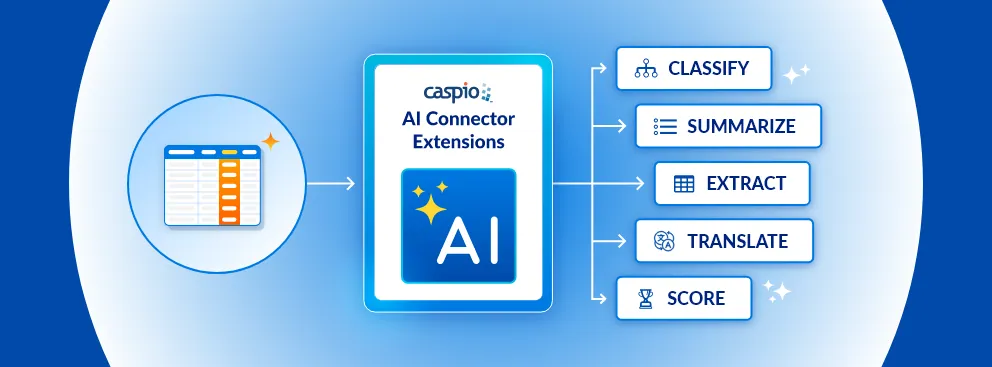
Caspio AI Connector Extensions can take five jobs off your team this week: classify incoming requests, summarize long notes, extract structured values from free text, translate records, and score leads or cases. Each one works in a table you already have, starting with the records that arrive from the day you switch it on, and writes its answer into a field in that same table.
Three extensions are available in the Caspio Marketplace today, OpenAI GPT, Google Gemini, and Anthropic Claude. More are on the way, and the recipes below work the same way with any of them.
How an AI Connector Extension Works in a Table You Already Have
AI Connector Extensions bring leading AI models into app workflows. Each requires a Caspio account with the Integrations Standard Package. Install one from your account (Integrations, then the Extensions tab) or from the Caspio Marketplace, then create an agent, which is the extension’s name for a saved job. It takes four decisions:
- Trigger. Choose the table and the event that starts the agent, such as a new record.
- Prompt. Write the instruction and insert the fields it should read as parameters.
- Response field. Click Evaluate to check the result, then pick the field that stores the answer.
- Switch it on. Click Create. Once the agent is active, qualifying records are processed in the background.
The fields your prompt references go to the AI model’s API, and the response is saved in your table, where reports, searches, and hosted apps or embeddable components can use it.
All five recipes below trigger on new records, so each job starts with the records that arrive after you switch it on. Rows already in the table stay as they are, and imported data does not trigger an agent.
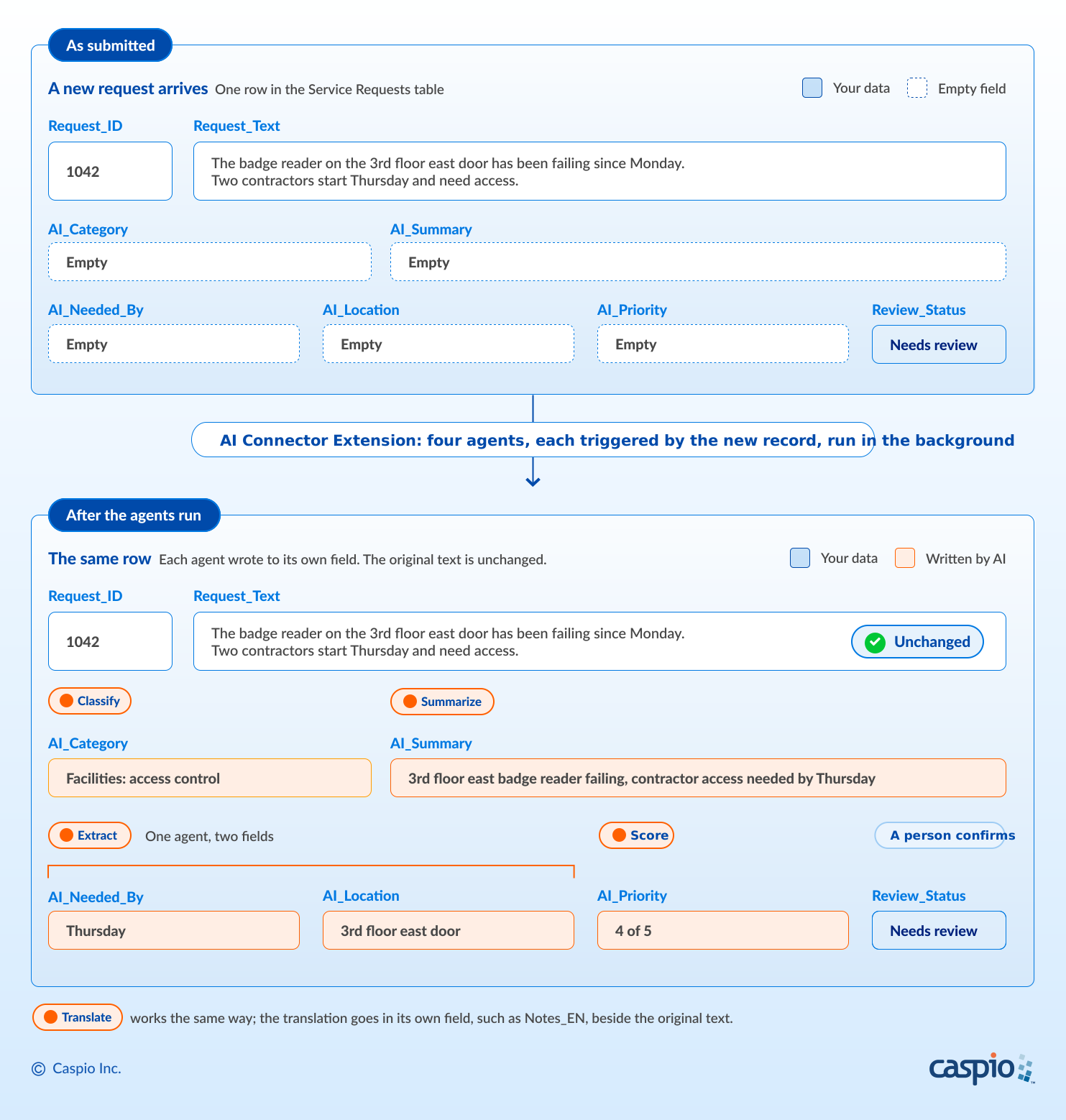
Request 1042 as submitted, and the same row after four agents have run on it. Each AI-generated value sits in its own field beside the original text.
The Five Jobs at a Glance
| Job | Table it suits | What goes in | What comes back | Who reviews it |
|---|---|---|---|---|
| Classify | Intake requests, support tickets | Request description | One category from your fixed list | Team lead, weekly |
| Summarize | Case notes, inspection reports | Long notes field | One line, 20 words or fewer | Whoever opens the record |
| Extract | Free-text intake, emailed requests | Request description | Named values, or NONE | Record owner, before acting |
| Translate | Multilingual field notes, comments | Original text | Text in your team’s language | Fluent colleague, on samples |
| Score | Lead forms, open cases | Description plus your criteria | A number from 1 to 5 | Person working the list |
One example runs throughout: request 1042 in a Service Requests table. Its Request_Text field reads, “The badge reader on the 3rd floor east door has been failing since Monday. Two contractors start Thursday and need access.”
Job 1. Classify Records: Route Requests Without a Triage Queue
Suits: Intake requests, support tickets, and survey comments, where someone reads free text to decide which team owns the record.
Steps:
- Add a text field to the table, for example AI_Category.
- In the extension, create an agent on the table, triggered on new records, with this prompt. Insert the request description as a parameter:
Classify the request description into exactly one of these categories: Facilities: access control, Facilities: repairs, IT: hardware, IT: accounts, Other. Return only the category name.
- Click Evaluate, check the result, map the response to AI_Category, and click Create.
What you get: The badge-reader request (1042) arrives and AI_Category is set to “Facilities: access control”. Each team’s view filters on that field, eliminating the need for a shared triage queue. Requests submitted before the agent was switched on stay uncategorized, so keep one view for blank AI_Category values.
Guardrail: Give the model a fixed list of allowed values, and include Other. Free-form categories drift (“Access”, “Door access”, “Badges”) and cannot be filtered. Read the Other pile weekly to find the category your list is missing.
Job 2. Summarize Notes With AI: Turn Long Notes Into One Line
Suits: Case notes, inspection reports, call logs, and long ticket descriptions, where people open every record to learn what it says.
Steps:
- Add a text field sized for a single line, for example AI_Summary.
- In the extension, create an agent on the table, triggered on new records, with this prompt. Insert the request description as a parameter:
Summarize the request description in one sentence of no more than 20 words. State the problem and any deadline. Do not add anything that is not in the text. Return plain text only.
- Click Evaluate, confirm the result fits the field, map the response to AI_Summary, and click Create.
What you get: The badge-reader request (1042) now carries “3rd floor east badge reader failing, contractor access needed by Thursday”. List views and search results show that summary instead of a truncated paragraph.
Guardrail: Reference only the fields the job needs. A summary needs the description, not the requester’s name, email, or phone number, so leave those out of the prompt.
Job 3. Extract Structured Data From Free Text With AI
Suits: Intake forms with one “tell us what you need” box and emailed requests pasted into a notes field, where dates and locations are buried in free text and cannot be easily sorted.
Steps:
- Add one field per value you want, for example AI_Needed_By and AI_Location.
- In the extension, create one agent on the table, triggered on new records. One agent can fill several fields. Ask for each value by name in the prompt:
From the request description, return two values. Needed by: the day or date the requester needs the work done. Location: the building, floor, or room. Return only the values. If a value is not stated, return NONE.
- Click Evaluate. Do not skip this: the fields the evaluation returns are the ones you can map. Map each to its own table field and click Create.
What you get: The badge-reader request (1042) gains AI_Needed_By “Thursday” and AI_Location “3rd floor east door”. List views can now show the deadline and filter by location.
Guardrail: Put a review step in front of anything consequential. Add a Review_Status field that starts at “Needs review” and have a person confirm an extracted date before it drives a schedule or a customer message.
Job 4. Translate Records With AI: One Table for a Multilingual Team
Suits: Field inspection notes, customer comments, and service requests written in one language and read by a team working in another.
Steps:
- Add a long text field next to the source field, for example Notes_EN.
- In the extension, create an agent on the table, triggered on new records. Name the target language in the prompt:
Translate the inspection note into English. Keep names, part numbers, and measurements exactly as written. If the note is already in English, return it unchanged. Return only the translation.
- Click Evaluate and ask a fluent colleague to check the result, then map the response to Notes_EN and click Create.
What you get: A note reading “La válvula de la línea 2 gotea desde el martes” sits beside “The valve on line 2 has been leaking since Tuesday.” New notes can be searched and reported on in a single language, while the author’s original text remains unchanged.
Guardrail: Keep AI output in its own field and never overwrite the source text. The original is the record; the translation is a reading aid.
Job 5. Score Leads and Cases With AI: Put the Most Important on Top
Suits: Lead forms and open-case tables where there is more work than can be completed in a day, and people process records in arrival order.
Steps:
- Write your criteria down first, then add a field for the result, for example AI_Priority.
- In the extension, create an agent on new records, with the criteria stated in the prompt:
Rate the urgency of the request description from 1 to 5. 5: people are blocked or unsafe and the deadline is within three days. 3: a deadline this month. 1: no deadline and no one blocked. Return only the number.
- Click Evaluate, check the result against your own judgment, map the response to AI_Priority, click Create, and sort your working view by that field.
What you get: The badge-reader request (1042) scores 4 of 5: the deadline is Thursday, and the contractors are not blocked yet. Records created before the agent was switched on have no score, so keep them in view. On a lead table the pattern is identical with your own criteria, such as stated budget, timeline, and fit.
Guardrail: A score ranks work for a person to look at. It does not decide outcomes about people: no automated approvals or denials, least of all where the record is an applicant, a patient, or a tenant.
Two Habits That Apply to All Five
Before you turn on any AI job, keep two habits in place: test the output before relying on it, and keep AI-written values separate from the source data.
- Test the output first. Click Evaluate, then watch the first few live records. Start every agent on new records so you can confirm the result before it affects older data or established workflows.If a summary or translation should refresh when its source text changes, choose new and updated records instead. Test that setup on a few records first, and confirm each one is processed only once. If anything looks wrong, deactivate the agent; its configuration is kept.
- Keep AI fields separate, and reference the minimum. A prefix such as AI_ tells anyone reading a report which values a model wrote. Store every AI response in its own field, never overwrite the source text, and keep each prompt narrow. The fields a prompt references go to the model’s API, so insert only what the job needs.For tables that hold protected health information, one more point applies. Caspio’s HIPAA-eligible AI features operate under signed Business Associate Agreements. Caspio holds those agreements covering the AI providers behind all three extensions. Your account still needs its own BAA with Caspio, which comes with the HIPAA add-on. The Caspio HIPAA Edition page covers the details.
How to Choose Your First Job
Use these rules to pick a first AI job that is easy to review, low risk, and useful quickly.
- Start where review already happens. Choose a job where a person already checks the result during normal work.
- Good first choices: Summarize and Classify, because a wrong summary or category is easy to notice and correct.
- Save for later: Score, because it needs more judgment and comparison before the team relies on it.
- Test Score beside the manual process. Run it for a week on new records, compare the results, adjust the prompt, and decide whether it is useful enough to keep.
- Use the same pattern for the next job. After the first job is working, the next one goes faster: choose a prompt, set a trigger, and store the result in a field.
Frequently Asked Questions
What can I do with Caspio AI Connector Extensions?
Caspio AI Connector Extensions (OpenAI GPT, Google Gemini, and Anthropic Claude, with more on the way) bring leading AI models into app workflows. Five practical uses include classifying incoming requests, summarizing long notes, extracting structured values from free text, translating records, and scoring leads or cases. Each job runs as new records arrive, and the result is stored in a field in your own Caspio table.
Do I have to rebuild anything to add AI to an existing Caspio app?
No. In Caspio you add a field to the table, create an agent with a prompt and a trigger, and choose that field for the response. Your existing apps keep working. An agent triggered on new records starts with the records that arrive after you switch it on. Rows already in the table stay as they are, and imported data does not trigger an agent.
Do Caspio AI Connector Extensions change my original data?
No, provided you set it up that way. A Caspio AI Connector Extension stores its response in the field you choose. Create a separate field for every AI result and the source text stays exactly as it was entered. Never map a response onto the field the prompt reads from.
Do I need my own account with an AI provider?
No. Each Caspio AI Connector Extension (OpenAI GPT, Google Gemini, and Anthropic Claude) installs from the Caspio Marketplace with no coding and no external AI account required. You install it, create an agent on your table, and it is ready to use. Usage and billing details are on each extension’s Marketplace listing.
Start With One Table
Start this week by choosing one table, installing an AI Connector Extension from the Caspio Marketplace, and setting up one job. The AI Connector Extensions page explains the extension family, while Caspio AI covers the broader AI offering.
Caspio Support can help with setup, or you can have us or one of our many certified partners build it for you.

Recommended Articles

How to Build Internal Apps With AI in 2026: 6 Steps
READ STORY
Best Bolt.new Alternatives for Business Apps (2026)
READ STORY
Online Database With a SQL Backend: 7 Questions to Ask
READ STORY
9 Vibe Coding Security Risks in AI-Generated Apps
READ STORY
Build Custom Business Apps Easily: 3 Patterns
READ STORY
PHI and Caspio AI: Which Features Your BAA Covers
READ STORY
How AI Agents Buy Software, and Why Legibility Wins
READ STORY
10 Questions to Ask Before Connecting AI to Business Data
READ STORY
Add a Role-Aware AI Chat Agent to Your Caspio App
READ STORY
Build Internal Tools With AI: Best Tools for Business (2026)
READ STORY
Vibe Coding vs. Low-Code: Key Differences and Where Caspio Fits in 2026
READ STORY
Lovable Alternatives for Business and Regulated Apps (2026)
READ STORY
