Add an AI Chat Agent to Your Existing Caspio App
September 21, 2026
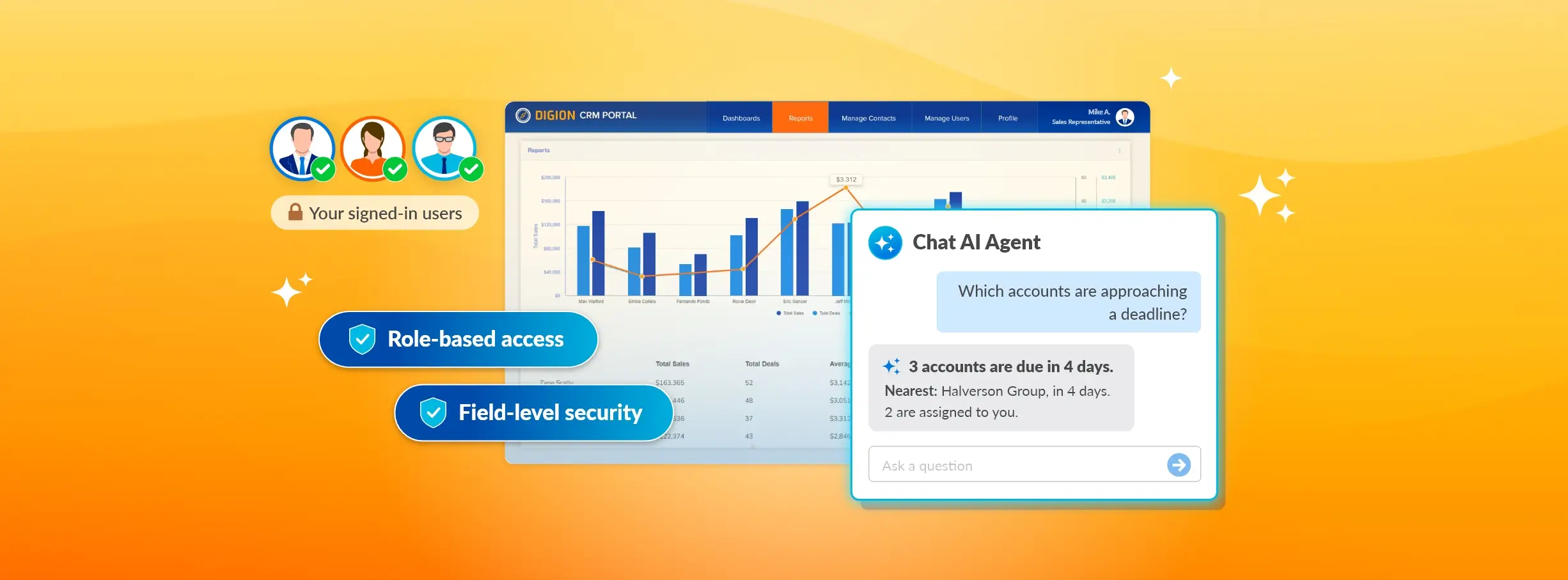
The Chat AI Agent, the first in Caspio’s AI Agents category, adds a chat panel to your Caspio app so signed-in users can ask questions in plain language and get answers from app data. The agent only returns data allowed by the user’s role and the fields you approved.
As one of Caspio’s four AI capabilities, the Chat AI Agent is designed for the people who use your app, not the people who build it. You add it to a signed-in area of a Flex app, where it becomes available across every page in that area and answers questions within the access rules you already defined.
What Is the Chat AI Agent in a Caspio App, and Who Is It For?
The agent appears as a floating chat panel within your app, providing an AI-powered assistant for authenticated users. Once signed in, users can ask questions in plain language, such as “How many work orders are overdue?” and receive answers based on the data and permissions available to them.
You add the agent through configuration, in the same designer used to add forms, reports, charts, and other app components. No custom AI development or model training is required.
The Chat AI Agent is distinct from Caspi. Caspi is the AI assistant you chat with inside the Caspio platform to build applications. The Chat AI Agent, by contrast, lives inside the app you built and is designed for your end users. Caspio’s other AI capabilities include AI Connector Extensions, which brings AI models into your workflows, and the Caspio MCP Server, which connects external AI tools to your app data.
What Data Can the Chat AI Agent See?
Three layers determine what the agent can access and include in its responses. The first two are yours to set at design time. The third is applied dynamically for each user and every question they ask.
Layer 1: The data sources you select. When you configure the agent, you choose the tables and views it may use. That selection defines the agent’s maximum scope. A table or view you did not select does not exist for the agent.
Layer 2: The fields you include. Within each data source, you choose which fields the agent can access. This provides field-level security at design time. Any field you exclude is out of scope for every user, regardless of their role. One important detail: all fields are selected by default, so you must review and limit access as needed.
Layer 3: The signed-in user’s role and permissions. At answer time, role-based access takes over: permissions are applied on top of the data sources and fields you configured. The agent never returns data that the user’s role does not already permit, even when that data sits inside the sources you selected.
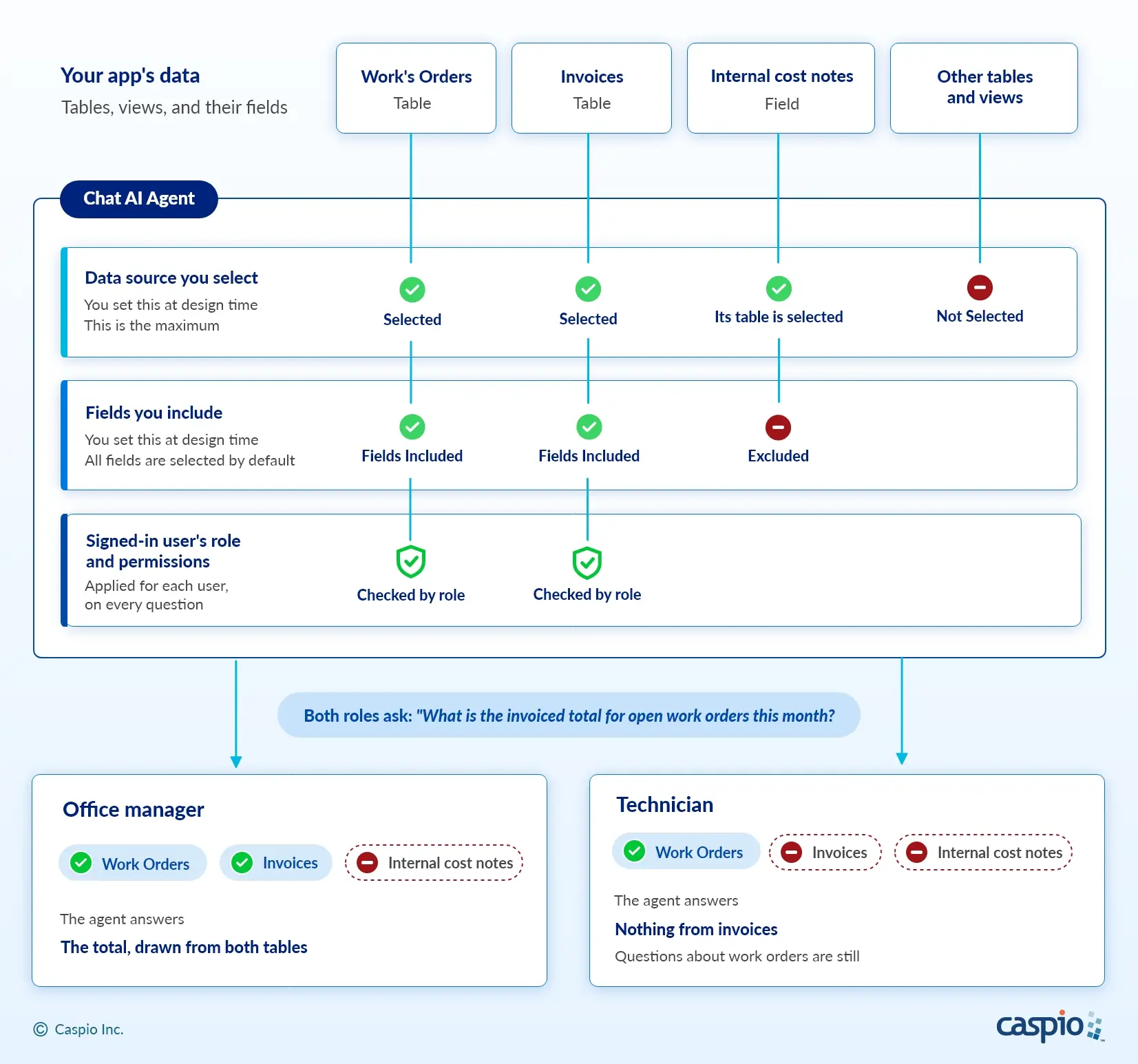
THREE LAYERS OF ACCESS: Data sources, selected fields, and user permissions determine which data the Chat AI Agent can use in each answer.
So, the same question can produce different answers for different people. Take a field service app where the agent can use a Work Orders table and an Invoices table, with an internal cost notes field excluded. Both roles ask: “What is the invoiced total for open work orders this month?”
| Role | What the app shows them | What the agent answers |
|---|---|---|
| Office manager | Work orders and invoices | The total, drawn from both tables |
| Technician | Work orders only; this role has no permission to access invoices | Nothing from invoices. Questions about work orders are still answered |
| Either role, asking about internal cost notes | Not relevant; the field was excluded from the agent | Nothing. An excluded field is out of scope for everyone |
What Can the Chat AI Agent Not See?
No user can learn more from the agent than the app itself would show them. In practice, that gives you four simple rules to keep in mind when thinking about data access:
- It cannot see tables or views you did not select.
- It cannot see fields you excluded, for any user.
- It cannot return data the signed-in user’s role does not already permit.
- It does not serve anonymous visitors. It runs only where users sign in, so every question comes from a known user with a known role.
The agent does not grant access or expand permissions. If you select a data source that a role has no permission to access, the agent cannot use it for that role until you grant the permission yourself. User roles are managed through Caspio’s identity management, which also serves as an identity provider (IdP) for third-party apps. In other words, if a role is too broad in the app, it is too broad in the chat.
Two Ways to Use the Chat AI Agent
The agent helps in two main ways: answering questions from app data and supporting users with prepared knowledge.
Questions About the App’s Data
The agent can handle ad hoc questions that would otherwise become report requests. For example:
- How many records are overdue?
- Which records are approaching a deadline?
- Which accounts represent the highest value this quarter?
The agent may not be able to answer every question, and users should still verify any figure that informs an important decision. If a request falls outside the agent’s approved scope, it shows the out-of-scope message you configured.
Support From the Agent’s Own Knowledge Base
Some questions are not about rows in a table, such as how to submit an expense or what the escalation procedure is. The agent can draw on its own knowledge base for answers beyond the data itself. For setup in your account, contact your account manager or Caspio support.
How Do You Add the Chat AI Agent to a Caspio App?
You add the agent through configuration in the designer of a Flex app. Select a signed-in area, add the Chat element under AI Agent, and choose the tables, views, and fields it can use. Caspio’s documentation article on the Chat AI Agent has the full walkthrough. Here’s the basic setup:
- Open your Flex app, select Designer. Select a page in any non-public Segment, meaning an area where users sign in. The agent serves every page in that Segment, so the Segment, rather than the individual page, determines where it appears.
- Select Add elements. Under AI Agent, select Chat. That is how the Chat AI Agent is listed in the designer.
- Choose the data sources and fields. Select the tables and views the agent may use to answer questions, then choose the fields within each. All fields are selected by default, so exclude any fields the agent does not need.
- Select Create. This adds the agent to the signed-in Segment so you can configure its behavior and messages next.
Then select the agent on the canvas. Under Configuration in the right panel, write the Instructions (how the agent should behave), Title, Welcome message, and Out-of-scope message. These settings define how the agent behaves and what users see when a question falls outside its scope.
Under Credit limit, you can control how much the agent is used. It draws on your account’s AI credits, and you set a Monthly limit for the agent in that Segment and a Per-user daily limit. Reaching the monthly limit stops the agent for everyone in the Segment, while reaching a daily limit stops it for that user only. See the documentation for the full details.
How to Roll Out the Chat AI Agent Safely
A safe rollout is less about turning the agent on and more about creating the right conditions for trust: a focused use case, clear boundaries, and a small audience that can help you learn before you scale.
- Pick one app and one signed-in area with cleanly defined roles and questions users ask repeatedly.
- Write those questions down. Questions that can be answered from your data indicate which sources the agent needs. Questions about procedures or policies belong in the knowledge base.
- Select only the sources needed to answer those questions. A purpose-built view may be preferable to giving the agent access to several raw tables.
- Trim the fields. Review each source and exclude anything sensitive or irrelevant. It is easier to add a field later than to explain an answer.
- Write the instructions and the out-of-scope message, then set usage limits. A clear out-of-scope message helps users understand when the agent cannot answer their question.
- Test each role before release. Sign in as each role, ask questions that the role should not be able to answer, and confirm that the agent returns no unauthorized data. Then release it to a small pilot group.
If Your App Handles Regulated Data
Caspio’s HIPAA-eligible AI features operate under signed Business Associate Agreements (BAAs). Handling patient data on Caspio also requires your own BAA with Caspio, which comes with the HIPAA add-on. Before you put the agent in front of patient data, confirm with your account manager that your account is set up for it. Caspio’s HIPAA, SOC 2 Type II, and GDPR compliance is independently audited annually.
These controls are not limited to regulated teams. The same permission model can be used by any team that needs to control access to application data.
Frequently Asked Questions
Can the Chat AI Agent show a user data they are not allowed to see?
No. In a Caspio app, the Chat AI Agent never returns data that the signed-in user’s role does not already permit, even when that data sits in the tables and views you selected. Role-based permissions apply to every answer, so a user cannot access more through the chat than they can through the app
What data can the Chat AI Agent access in my Caspio app?
The Chat AI Agent can access only the tables and views you select when you configure it, limited to the fields you include in each one. Anything you do not select is outside the agent’s scope, and each answer is further limited by the asking user’s role.
Can I stop the Chat AI Agent from reading specific fields?
Yes. For each table or view you select, you choose which fields the Chat AI Agent can access. An excluded field is out of scope for every user, regardless of their role. This provides field-level security at design time. All fields are selected by default, so review each source before release.
What is the AI chat agent in a Caspio app called?
The AI chat agent you add to a Caspio app is called the Chat AI Agent. AI Agents is Caspio’s product category, and Chat is the first AI Agent in it. Where Caspio’s website calls it in-app, that describes where it runs: inside the Flex app you built, for your signed-in users. That sets it apart from Caspi, the AI you chat with in the Caspio platform to build applications.
Can I use the Chat AI Agent in an app that handles patient data?
Only after you confirm with your account manager that your account is set up for HIPAA. Handling patient data on Caspio requires the HIPAA add-on and your own BAA with Caspio. Caspio’s HIPAA-eligible AI features operate under signed BAAs.
Try It in the Account You Already Have
Open one of your Flex apps, add the Chat AI Agent to a page in a signed-in area, and test it with each role. AI capabilities are available on every plan tier.
Have questions about your setup? Contact your account manager or Caspio support. For the full walkthrough, see the documentation.

Recommended Articles

Best App Builders for Small Medical Practices
READ STORY
Best Knack Alternatives (2026): AI and Compliance
READ STORY
Secure AI Code Generation: 10-Point Checklist
READ STORY
Best Bubble Alternatives for Business Apps (2026)
READ STORY
How to Build Internal Apps With AI in 2026: 6 Steps
READ STORY
Best Bolt.new Alternatives for Business Apps (2026)
READ STORY
Online Database With a SQL Backend: 7 Questions to Ask
READ STORY
9 Vibe Coding Security Risks in AI-Generated Apps
READ STORY
Build Custom Business Apps Easily: 3 Patterns
READ STORY
Caspio AI Connector Extensions: 5 Jobs for Your Tables
READ STORY
PHI and Caspio AI: Which Features Your BAA Covers
READ STORY
How AI Agents Buy Software, and Why Legibility Wins
READ STORY
